
Accessible eLearning: A Practical Primer for Online Training
What each accessibility feature does, who it helps, and where to start
| September 10, 2026 | Accessibility, eLearning Development, Training Modality and Access |

In this article:
For many organizations, accessible eLearning feels overwhelming. Captions, alt text, contrast ratios, keyboard navigation, transcripts, WCAG levels, Section 508. It’s hard to know where to start, and putting it off is a reasonable response.
Broken apart, it’s smaller than it looks. A handful of features do the bulk of the job, and most authoring tools already support them. Address them during storyboarding and prototyping, and they stay a few small decisions instead of a problem you have to solve after you launch the program.
Key Takeaways
- Seven features do most of the work in accessible eLearning: captions, alt text, color contrast, resizable text, keyboard navigation, transcripts, and font choice and text size. Most authoring tools support all of them without custom work.
- WCAG Levels tell organizations how far to take each feature, from baseline compliance to fully functional.
- Timing drives the cost more than the features do. Teams that build accessibility in during production treat it as part of the build. Teams that wait until the library is finished have to scope it as a standalone project.
What Accessible eLearning Means
Accessible eLearning means building a course so that an employee with a disability can get through it as well as anyone else. An employee who is blind and uses a screen reader has to be able to move through the module and know what each diagram shows. A learner who is deaf needs the narration available in another form. Someone with limited hand mobility needs to finish the whole course without using a mouse.
Most organizations implement some sort of accessibility features in their materials, but presence isn’t access. An image can have alt text and still fail the person it was added for, if that text reads out “Screenshot_047.png.” A video can carry captions that garble every technical term in the script. The feature is there. It just doesn’t do anything.
As Microsoft’s Steve Ballmer put it, “accessible design is good design” — the features built for one group tend to make things easier for everyone else too. You can think of it like a curb cut, the small ramp where a sidewalk meets the street. It was built for wheelchair users, and it gets used all day by anyone pushing a stroller or a hand truck. But a curb cut with a three-inch lip left at the bottom stops a wheelchair as cold as the curb it replaced. The feature is present but still useless.
The same test applies to an accessibility feature: built with care, it helps far more people than the group it was designed for; added as a formality, it can be marked complete without helping anyone.
Understanding the Standards: WCAG and Section 508
When you start researching accessibility, you’ll likely come across two terms. The Web Content Accessibility Guidelines, or WCAG, are the technical standard nearly every accessibility requirement points back to. They’re maintained internationally, they cover digital content broadly (which includes training), and they’re organized into levels that describe how far a piece of content goes toward being usable.
Section 508 of the Rehabilitation Act is the U.S. federal law that requires federal agencies and their contractors to meet accessibility requirements in digital content, training included. It doesn’t invent its own criteria. It points at WCAG’s criteria and turns them into a legal obligation for a specific set of organizations.
Compliance Levels
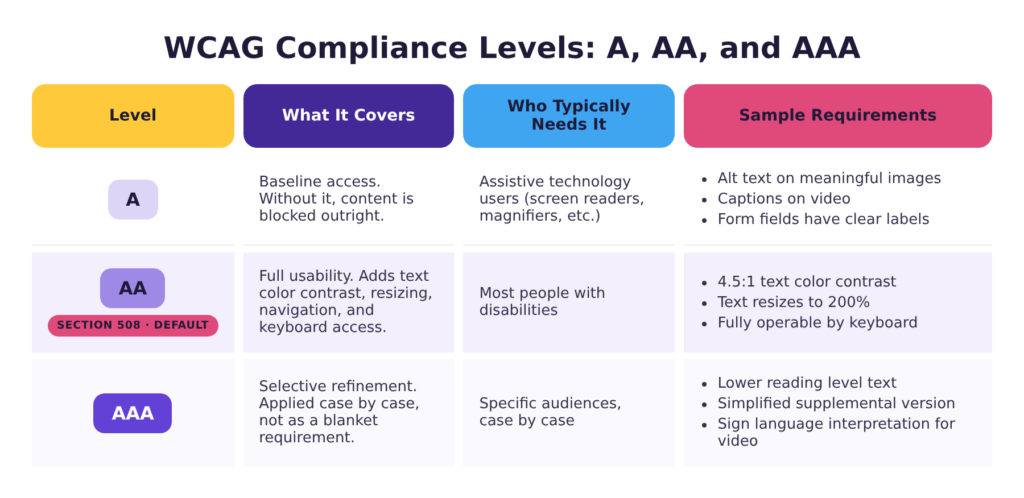
WCAG is broken into three levels. They give organizations a way to decide how far to go with accessibility in eLearning.
Level A is the floor. It covers the basic features that, if absent, would prevent many people with disabilities from accessing the content. This would include things like an image with no alt text or a video with no captions. However, a course can meet Level A and still be difficult for someone with a disability to access.
Level AA is where most organizations land, and it’s what Section 508 requires. It adds color contrast, resizable text, consistent navigation, and keyboard accessibility. A course that meets AA is usable by most people with disabilities, which makes it the sensible target even for an organization with no legal mandate to adhere to.
Level AAA is the strictest tier, and WCAG itself doesn’t recommend it as a blanket requirement. Strict adherence to AAA criteria would make it almost impossible to build training content. For example, one criterion restricts text to a lower reading level or requires a simpler supplemental version, which is likely unworkable for anything technical or regulated. Most organizations pull individual AAA practices where they help a specific audience rather than going for the whole tier.
Who eLearning Accessibility Requirements Apply To
For most private employers, no federal rule says internal training has to meet WCAG. The obligation arrives in a different way. The Americans with Disabilities Act (ADA) treats training as a condition of employment, so an employee who can’t complete a required course has been shut out of part of their job. State procurement rules also apply to state contractors the way Section 508 applies to federal ones, and public agencies, universities, and community colleges can carry their own separate state and federal requirements on top of that.
The Accessible eLearning Design Features Worth Knowing
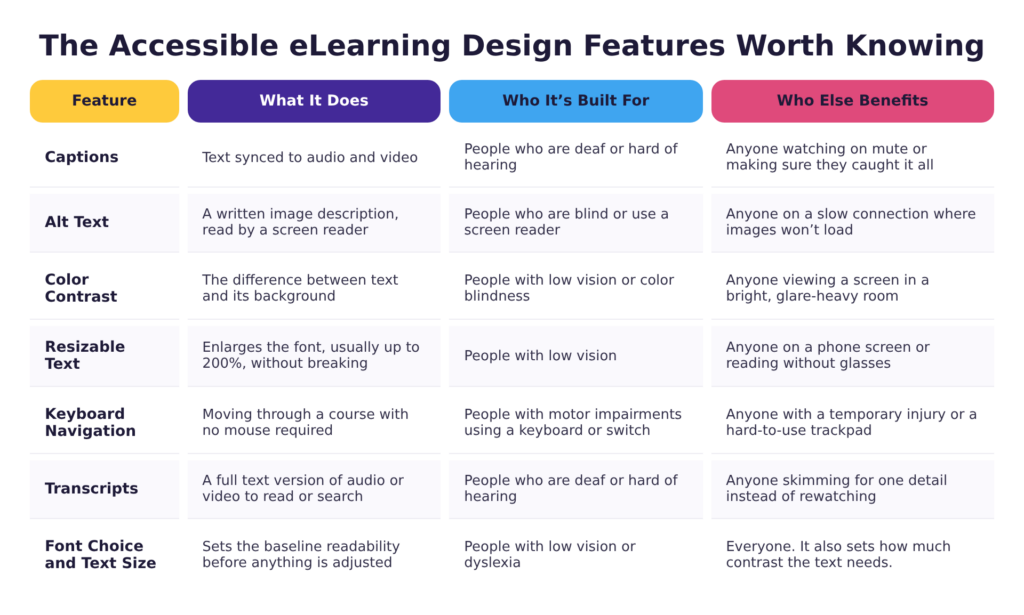
You don’t have to be an expert in WCAG to make training content accessible. A handful of features do most of the work. Part of an instructional designer’s job is helping a team figure out which combination their learners need. Here’s what each one does and who it’s for:
- Captions are text synced to audio and video. They exist for people who are deaf or hard of hearing. They also get used frequently by hearing people: the technician taking a module on the plant floor, the manager watching between meetings with the sound off, and anyone who just wants to be sure they’re catching all of the audio correctly.
- Alt text is a written description of an image that a screen reader reads aloud. Writing alt text well takes more thought than just filling in the field, since the description has to do the same work for a blind employee that the image does for a sighted one. It also comes through for anyone on a slow connection or a locked-down device where the image itself never loads.
- Color contrast is the difference between text and the background behind it. Low contrast is hardest on people with low vision or color blindness, but it can also impact whether a course is legible on a screen in a well-lit room, even for those who don’t have low vision.
- Resizable text lets a learner enlarge the font, usually up to 200 percent, without the layout breaking or content getting cut off. It’s built for low vision, but it could also be used by someone taking the course on a phone or reading without their glasses.
- Keyboard navigation means a learner can move through the entire course without a mouse. It’s a requirement for people with motor impairments who use a keyboard or a switch device, and it also covers anyone with a temporary injury or someone whose laptop track pad is difficult to use.
- Transcripts turn audio or video into a full text version someone can read, search, or skim. They serve people who are deaf or hard of hearing but they’re also helpful for any employee who wants to go back and skim for a specific piece of information, rather than re-watching a 20-minute video from the start.
- Font choice and text size set the baseline for how readable a course is before a learner adjusts anything. Fonts and typography with clear letterforms and a comfortable default size help people with low vision or dyslexia, and they determine how much contrast the text needs to be readable.
Most authoring tools handle all of this without custom work, and the earlier in the build these choices get made, the less they cost.
Making Interactive Elements Accessible
Creating accessible interactive elements, like drag-and-drop exercises, quizzes, and branching scenarios, adds a layer beyond captions and alt text. Passive content just has to be perceivable, meaning a learner can take it in. Interactive content also has to be operable, meaning a learner can use it. For example, every choice a learner can make with a mouse needs a path that doesn’t require one, and the tab order has to follow the logic of the screen rather than the order you dropped them onto it.
Not every exercise has to be built to that standard. If you’re working under a formal mandate, a federal contract or a state procurement requirement, decide which interactions are in scope before production starts, because retrofitting a branching scenario is closer to rebuilding it than editing it.
Without a mandate, the workable middle ground is to keep the interactions that function as assessments fully operable by keyboard. Nobody should fail a course because they can’t use a mouse. Handle the other interactive elements case by case, based on their purpose and context.
Accessibility Doesn’t Stop at the Course File
A course can pass every accessibility check and still be unreachable. Getting to a module means logging in, finding it in a catalog, launching it, and landing back on a completion screen. The LMS controls all of that, not the person who builds the course.
When you’re choosing an LMS, ask what standard it meets. Some vendors answer that in a VPAT, a standard form describing how their product measures up against WCAG. A VPAT is a self-report, so read it as a starting point rather than an answer. Then have someone tab through the login and the catalog the same way they’d tab through a module. If your learning platform can’t be navigated without a mouse, an accessible course sitting inside it doesn’t help anyone.
Where to Start Building Accessible eLearning
Accessibility can feel overwhelming when you’re looking at all of it at once, which is why it helps to know what features should be handled at each part of the process.
Captions and alt text are the most important features to include. They address the two most common barriers: audio and visual. They can easily be included while the course is being built and their absence blocks a course outright instead of making it awkward.
Color contrast, font choice, and default text size are usually template decisions that can be made once. Instructional designers and graphic designers often work these out together, and every course built from the template starts out with those choices already made.
Resizable text, keyboard navigation, and transcripts come down mostly to what your authoring tool supports so it’s important to confirm what’s available rather than assume. If the features are available, it’s typically a matter of making sure the necessary settings are selected.
Retrofitting a Course Library
You might be all set with making your courses accessible going forward, but what do you do if you’ve already got a content library that’s full of inaccessible materials? Remediating all of it at once isn’t realistic, and it usually isn’t necessary.
Start by figuring out which courses should be retired rather than updated. Courses covering a process that changed or a system you no longer run are better off removed from the course library altogether. Run the retire-or-replace pass before you start any accessibility work.
From what’s left, fix the courses everyone has to take first. Required compliance and onboarding training reaches the whole workforce, which makes it both the most likely place for someone to hit a barrier and the most important to fix.
Then move through the remaining modules by enrollment, working from the courses that reach the most learners down.
Accessibility Testing and Auditing for eLearning
Accessibility testing and auditing for eLearning works best woven into the build rather than saved for the end. Waiting until a course is finished, or until an outside audit surfaces the problems for you, means fixing issues across a whole library instead of one screen at a time.
Some authoring tools include automated checkers that can flag missing accessibility features. There are also web-based checkers like WebAIM’s WAVE tool. It works on a course published to a web address rather than one launched inside an LMS, so it can do a first pass on any output you can point it at. These tools flag things like missing alt text, weak contrast, and unlabeled form fields. What they can’t do is judge quality, which is the part that matters most. No checker will tell you whether a caption misspelled a piece of terminology, or whether alt text accurately describes a diagram.
Automated checkers should always be paired with a manual check. This could include tabbing through the course to check that the order makes sense and every interactive element is reachable or turning on a screen reader and listening to the course. This check can also be included in the scope when you hire an eLearning development partner, so it’s a good thing to ask about when you’re first discussing your needs.
Final Thoughts
Accessible eLearning comes down to a set of small decisions about type, contrast, captions, and navigation, made inside the course-building process you already use. Most of it comes down to knowing which authoring-tool settings to turn on and building the habit of checking them before a course ships.
Accessibility decisions are easier to make alongside someone who has made them before. Check out our custom eLearning development services or schedule a free consultation with one of our instructional designers for recommendations on your own training.